 Databiomes
Getting Started
Settings
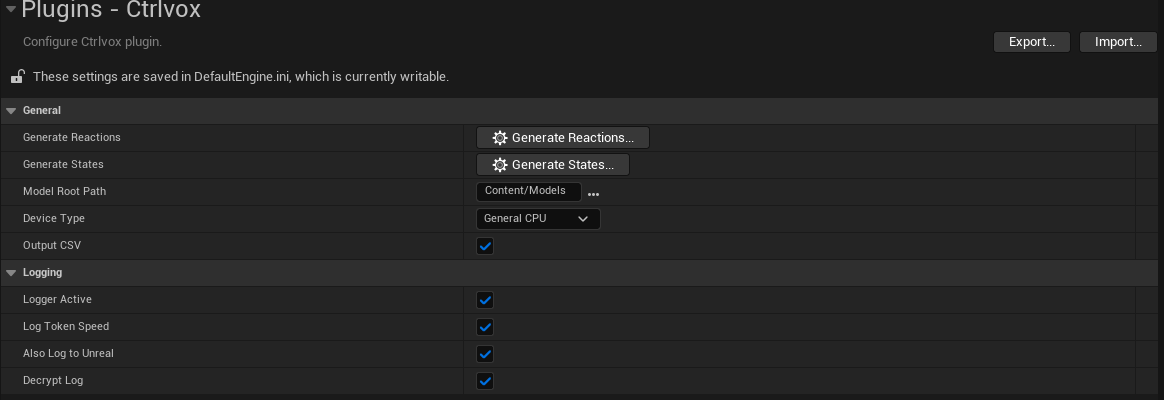
After the plugin is installed and enabled Ctrlvox blueprint nodes will be available for use and two pages will appear in the project settings, Ctrlvox and Ctrlvox Voice.
The settings can be found in Edit > Project Settings > Plugins > Ctrlvox/Ctrlvox Voice.
The Ctrlvox settings can be used to adjust the device you are targeting. Changing devices will prompt an editor restart.
Output CSV must be toggled on to generate CSV data for use in retraining the model.
Additionally log settings specific to the categorization and processing through the Flora model can be adjusted from here.
In the Ctrlvox Voice page you will find the settings to adjust how audio is trascribed using Whisper. The model that is used can be replaced for increased accuracy at the cost of file size and transcription speed.
For non-Intel devices whisper.cpp is used. The tiny model for whisper.cpp is included by default in the folder /Content/Whisper/. Additional models can be downloaded from here.
For AMD NPU devices additional models can be downloaded or converted using the instructions located here.
For Intel devices The tiny Whisper model is included in the folder /Content/Whisper/ by default. Additional models for OpenVino can be downloaded from here.
To use other models, move the model files into a folder within the Ctrlvox plugin and select the file from the settings.

It is generally recommended to leave the other settings as default.
Setup
In order to use Ctrlvox, a voice chat user interface (IVoiceChatUser) from Unreal Engine's Voice Chat Interface system is required. For example, in the EOS Voice Chat Plugin, FOnlineSubsystemEOS::GetVoiceChatUserInterface can be used to obtain the value.
From the Ctrlvox Subsystem CtrlvoxInitUser should be called on the voice chat user interface after connecting to the lobby. This can either be setup from C++ entirely or a blueprint node can be created for initializing the user.
UCtrlvoxSubsystem* CtrlvoxSubsystem = UGameplayStatics::GetGameInstance(WorldContext)->GetSubsystem<UCtrlvoxSubsystem>();
CtrlvoxSubsystem->CtrlvoxInitUser(VCUser);
Then CtrlvoxUninitUser should be called before disconnecting from the lobby.
The file Content/Ctrlvox/FilteredWords.txt can be used to contain a set of words (one on each line) that, when detected, will be replaced in the output as [CENSORED] and will be set to Toxic/SevereToxic for the categorization. By default the file is empty.
Blueprints
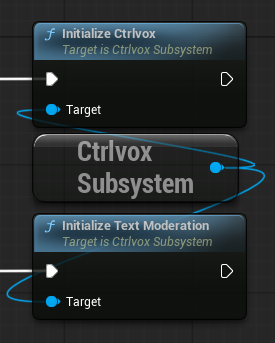
Ctrlvox must be initialized before use. If using only text moderation, Initialize Text Moderation must be called on the Ctrlvox Subsystem. If using voice chat moderation or both voice and text moderation then Initialize Ctrlvox must be called.
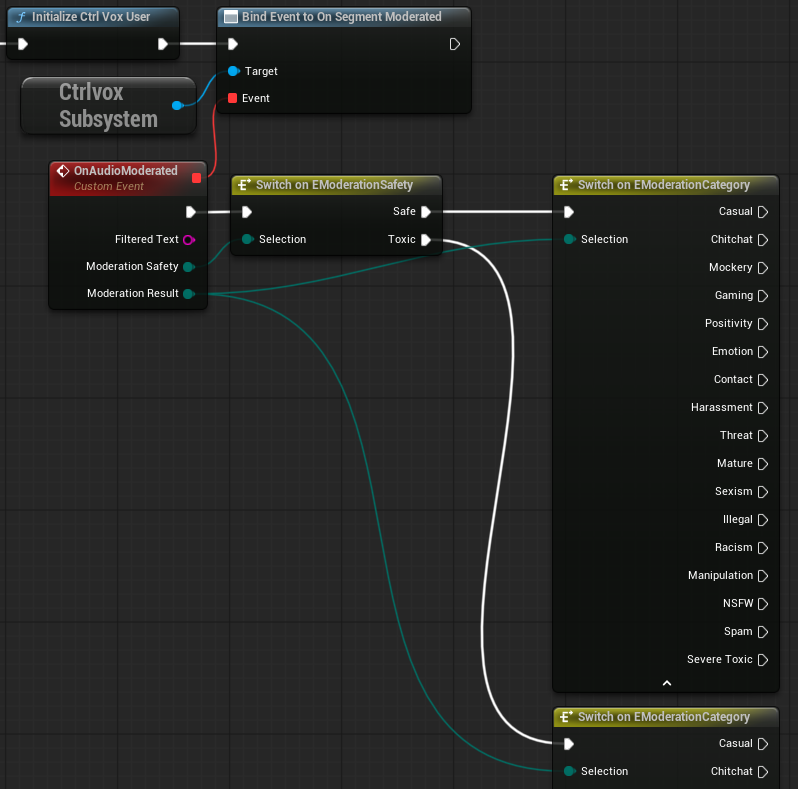
An event OnSegmentModerated can be bound to on the Ctrlvox Subsystem to give categorization for the segment of text or audio along side the filtered text.
After the user is initialized using the IVoiceChatUser, the event will automatically fire when audio is detected.